Phase 2: Starting Your Shift
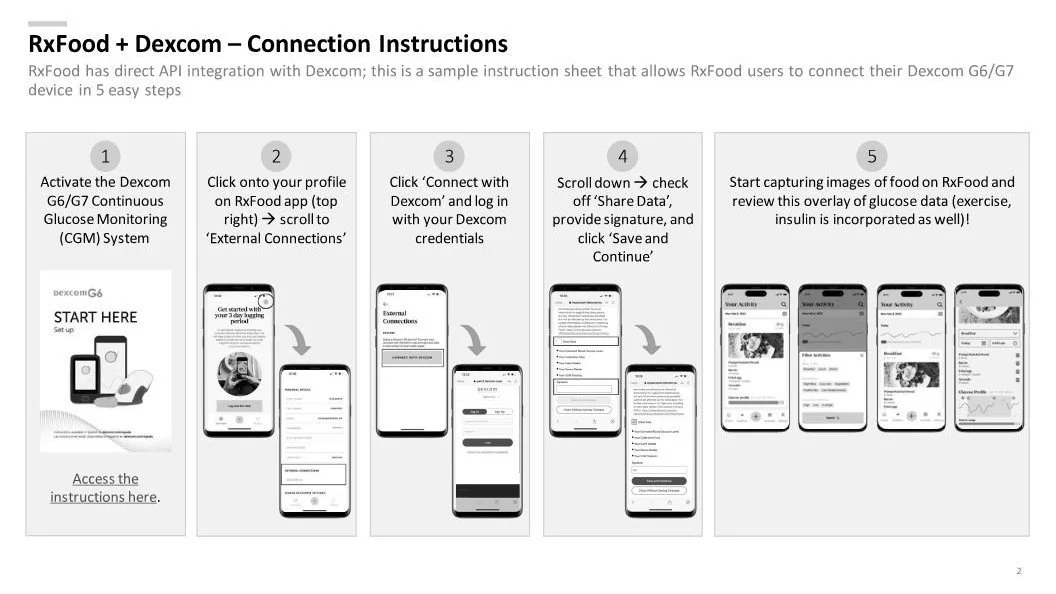
Here are the steps required:
Preparing for Integration
Activate Your Dexcom CGM:
Ensure your Dexcom G6/G7 Continuous Glucose Monitoring System is activated.
Access the Dexcom activation instructions if needed.
Log in to you Ship’s Manifest (RxFood App):
Download and install the RxFood app on your smartphone if you haven't already.
Log in to your RxFood account.
Connecting Dexcom to RxFood
Access RxFood Settings:
Open the RxFood app.
Click on your profile icon in the top right corner.
Navigate to External Connections:
Scroll down in your profile settings.
Locate and select 'External Connections'.
Initiate Dexcom Connection:
Find the 'Connect with Dexcom' option.
Click on it to begin the connection process.
Log in to Dexcom:
Enter your Dexcom account credentials.
Authorize the connection between Dexcom and RxFood.
Configure Data Sharing:
Scroll down to find the data sharing options.
Check the box next to 'Share Data'.
Provide your signature in the designated area.
Finalize Connection:
Click 'Save and Continue' to complete the integration.
Verifying the Connection
Check Data Display:
Start capturing images of your food in the RxFood app.
Verify that glucose data is overlaid on your food entries.
Confirm that exercise and insulin data (if applicable) are also displayed.
Test Real-Time Updates:
Monitor your Dexcom readings for a short period.
Ensure these readings are accurately reflected in RxFood.
Review Historical Data:
Check if your past Dexcom data is available in RxFood.
Verify the data's accuracy and completeness.
Troubleshooting
If Connection Fails:
Double-check your Dexcom login credentials.
Ensure your Dexcom app is up to date.
Try disconnecting and reconnecting in RxFood.
If Data Doesn't Appear:
Verify that data sharing is enabled in both Dexcom and RxFood.
Check your internet connection.
Restart both apps and try again.
Seek Support if Needed:
Contact RxFood support for integration issues
Reach out to Dexcom support at 1-844-832-1809 for CGM-specific problems